.avif)
TL;DR
The winning structure is 9 templates organized by scenario, wrapped in a 4-touch, 14-day cadence. Send on Days 1, 4, 9, and 14, never more than 4 messages, never longer than 300 characters each.
Personalized messages get 3x higher response rates than generic ones. Pre-made templates alone averaged just an 8.6% reply rate in one study, so these templates are starting points, not copy-paste-and-pray.
After your second LinkedIn follow-up gets no reply, switch to email. Sequenced follow-ups improve conversions by 49% over one-off attempts.
LinkedIn tightened the screws in 2026: over 15 million accounts were restricted in Q1 for suspicious activity. Spammy blast sequences now get you flagged, not just ignored.
Use these templates for manual outreach. Use SalesRobot to run the full 4-touch sequence automatically, including the LinkedIn-to-email switch after follow-up #2, where customers see a 55% average reply rate.
Skip manual follow-up juggling. SalesRobot runs your entire LinkedIn and email drip automatically and books the meetings for you. Try it free for 14 days.
Why Your Follow-Ups Are Getting Ignored in 2026
They accepted your connection request. You sent a message, and then nothing.
Only 2% of deals are made after the first contact. If you're not following up, you're leaving 98% of your pipeline on the table.
The old playbook of blasting the same template to 200 people is dead in 2026. Pre-made templates alone averaged an 8.6% reply rate in one study, and that's not a strategy.
LinkedIn is done tolerating spam. Over 15 million accounts were restricted in Q1 2026 for suspicious activity as the anti-automation crackdown got serious.
So this post gives you 9 scenario-specific templates and the exact cadence to send them, timing, message count, and character limits included. Steal them, personalize them, and stop losing warm leads to silence.
What's the Only LinkedIn Follow-Up Cadence You Need in 2026?
Send a maximum of 4 messages over 14 days, spaced on Days 1, 4, 9, and 14. Keep each one under 300 characters, and switch to email after the second follow-up gets no reply.
That's the whole framework. Everything else is noise.
Sending more than four messages without a response can damage your personal brand and make you look pushy. There's no template that survives being your fifth unanswered message.
Attention is short, so one idea per message wins. Focus each touch on a single point with one clear, choice-based CTA.
The 4-Touch / 14-Day LinkedIn Follow-Up Sequence
Timing shifts slightly by scenario. Follow up within 1 to 2 days after a connection is accepted, wait 3 to 5 days if they replied once and went quiet, and follow up 2 to 3 days after they view your profile without responding.
9 LinkedIn Follow-Up Templates That Get Replies in 2026
These are grouped by scenario on purpose. The right message for "they accepted but never replied" is completely different from "they replied once and ghosted me."
Pick the scenario you're in, then personalize the bracketed parts before sending.
Scenario 1: After They Accept Your Connection Request (No Reply)
This is your highest-volume situation. The connection's accepted, but the conversation never started.
Template 1: The Relevant Value Drop (Day 1)
Lead with something useful before you ask for anything. A stat, a resource, a specific observation about their world removes the "what does this person want from me?" friction instantly.
"Thanks for connecting, [First Name]. Saw [Company] is scaling [specific thing], this teardown of how [similar company] handled the same jump might be useful: [link]. Not trying to pitch, just thought it was relevant."
If your follow-up could be sent to 50 other people without changing a word, it's time for a rewrite.
This is where SalesRobot's AI Variables earn their keep, pulling details straight from each prospect's LinkedIn profile so the "specific thing" is actually specific.
Template 2: The Soft Nudge (Day 4)
Reference the connection context and add a low-friction CTA, a yes or no question, not a calendar link. Choice-based CTAs kill decision paralysis.
"Hey [First Name], did you receive that [resource]? Curious whether [specific challenge] is even on your radar this quarter, or if you've already got it handled. Either answer works for me."
Scenario 2: They Replied Once, Then Went Quiet
They engaged, then the thread died. Wait 3 to 5 days, then bring it back to life.
Template 3: The Context Callback (Day 3-5 after silence)
Reference the specific thing they said last time. This keeps the thread alive without re-pitching from scratch, and it proves you actually read their reply.
"[First Name], you mentioned [specific thing they said] last week, did you end up moving on that? Happy to share what worked for [similar company] if it's still open."
This is where tracking conversation state matters. SalesRobot's AI keeps the full conversation history in view so touch #3 references touch #1, not a blank slate.
Template 4: The New Angle (Day 7-9 after silence)
Pivot to a different value angle instead of repeating the same pitch. A fresh angle signals you've actually thought about their situation.
"Different thought, [First Name], beyond [original topic], teams like yours usually hit [second, related problem]. If that's a live issue, I've got a two-line fix that saved [Company] a few hours a week."
Custom-tailored messages massively outperform that 8.6% template baseline. Personalization drives 3x higher response rates.
Scenario 3: After a Meeting, Event, or Webinar (Warm Follow-Up)
These have the highest reply potential because the shared context does the personalization work for you.
Template 5: The Post-Event Connection (Day 1)
Reference the shared event immediately, since this is your highest-intent window. Move within 1 to 2 days.
"Great session at [Event], [First Name], your point on [specific thing they said or the topic] stuck with me. Connecting to keep the thread going. What did you make of [related question]?"
SalesRobot's AI Variables can pull recent activity and shared connections from a profile automatically, so even at scale the "specific thing" isn't a generic filler line.
Template 6: The Meeting Follow-Up (Day 1-2 post-call)
Recap the one key point from the call plus one clear next step. Momentum lives in a single, easy next action.
"Thanks for the time, [First Name]. Biggest takeaway for me: [the one point that mattered]. Next step is [one specific action], want me to send that over Thursday, or does early next week work better?"
One idea per message, one choice-based CTA. That's the whole rule.
Scenario 4: The "Nothing Is Working" Templates
Late-sequence rescue moves for when the standard touches haven't landed.
Template 7: The Profile View Follow-Up (Day 2-3 after they view your profile)
They signaled interest by viewing your profile. This template converts passive curiosity into an actual reply, and timing is critical: hit them 2 to 3 days after the view, while it's fresh.
"Noticed you swung by my profile, [First Name], figured I'd say hi properly. If it was about [likely reason], happy to send over [specific relevant thing]. If not, no worries at all."
Template 8: The Channel Switch (Email, after LinkedIn Follow-Up #2 fails)
When LinkedIn goes cold after your second follow-up, switch to email. Multichannel sequences aren't optional in 2026, and sequenced follow-ups spaced 2 to 5 business days apart improve conversions by 49% over single-channel attempts.
Subject: One more angle on [their challenge]
"Hi [First Name], tried reaching you on LinkedIn but figured email might be easier. Quick version: [one-sentence value]. Worth a 15-minute look, or should I close the loop? Either's fine."
This is exactly the move SalesRobot automates. Its drip campaigns start on LinkedIn and automatically switch to email if the prospect doesn't respond on LinkedIn, so you never manually track who to move where.
Template 9: The Break-Up Message (Day 14, Touch 4)
Give them explicit permission to opt out. This is often the highest-reply message in the whole sequence, since it reduces pressure and in outreach tests reopens stalled threads.
"[First Name], I've reached out a couple of times and don't want to clutter your inbox, so this is my last note. If [challenge] isn't a priority right now, no problem at all. And if timing's just off, just say 'later' and I'll circle back down the road."
5 Things That Kill Your Reply Rate (Even With Good Templates)
Great templates die on bad execution. Avoid these five.
- Shouting. All caps and extra punctuation reads as aggressive and spammy, not attention-grabbing. Write like a human texting a colleague.
- The 50-person paste. If your follow-up could be sent to 50 other people without changing a word, rewrite it. Generic templates are the reason the baseline reply rate is 8.6%.
- Leading with your pitch. Your first follow-up should deliver something useful without asking for anything. Save the ask for touch #2 or #3.
- Firing too fast. Sending touch #3 before the right number of days have passed reads as desperate. Respect the Days 1, 4, 9, 14 spacing, and stay under the safe 2026 sending limits so you don't get flagged.
- Stopping at LinkedIn. If they haven't replied by Day 9, LinkedIn alone probably won't crack it. Switching to email is where the 49% conversion lift comes from.
How Does SalesRobot Run Your Entire Follow-Up Sequence Automatically?

Here's the honest gap in most tools: they automate sending the sequence but leave reply handling completely manual. SalesRobot closes that loop, and it does three things that matter for follow-ups specifically.
It runs the multi-channel drip for you. SalesRobot combines LinkedIn automation with cold email sequences in one platform. Your campaign starts on LinkedIn, connection request, message, follow-up, and then automatically switches to email if the prospect doesn't respond on LinkedIn, running the Template 8 channel switch without you tracking a spreadsheet.
It personalizes every template with AI Variables. SalesRobot automatically pulls relevant information from each prospect's LinkedIn profile, recent job changes, company news, shared connections, to craft messages that don't read like a mail merge. This is the direct fix for the 8.6% template problem.
Its AI Appointment Setter handles the replies. This is the part other tools skip. It works in two modes: Copilot reviews conversations and suggests personalized replies you approve with one click, and Autopilot manages entire conversations, handles objections, and books qualified meetings 24/7.
The results back it up: 55% average reply rate across customers, up to 66% in one case study, and a 51% connection acceptance rate. It's used by 4,100+ B2B sales teams and rated 4.8 on G2 from 57+ reviews.
On safety, which matters given 2026's crackdown, SalesRobot uses mobile API technology that mimics human behavior with randomized delays and human-like limits. Customers report zero account bans following Safe Mode guidelines.
Pricing starts at $59/month (Starter), with a 14-day free trial and no credit card required. Start your free trial here.
Frequently Asked Questions
How many follow-up messages should you send on LinkedIn?
Send a maximum of 4 follow-up messages over roughly 14 days. Sending more than four without a response can damage your personal brand and make you appear pushy.
Space them on Days 1, 4, 9, and 14, and make the final touch a low-pressure break-up message that gives the prospect an easy out.
How long should you wait to follow up on LinkedIn?
Follow up on Days 1, 4, 9, and 14 for a standard sequence. Timing shifts by scenario: reach out within 1 to 2 days after a connection is accepted, wait 3 to 5 days if they replied once then went quiet, and follow up 2 to 3 days after someone views your profile without responding.
What should you say in a LinkedIn follow-up message?
Lead with value, not a pitch, a relevant resource, stat, or observation about their world. Keep each message under 300 characters, focus on one idea, and end with a single choice-based CTA.
Personalized messages get 3x higher response rates than generic templates.
Can you automate LinkedIn follow-up messages and still keep them personal?
Yes. Tools like SalesRobot use AI Variables to pull live data from each prospect's LinkedIn profile, recent job changes, company news, shared connections, and drop those details into each message automatically.
That keeps outreach personal at scale, while its AI Appointment Setter handles replies and books meetings for you.
What do you do when someone doesn't respond on LinkedIn?
After your second LinkedIn follow-up gets no reply, switch channels and send an email (Template 8). Sequenced multichannel follow-ups improve conversions by 49% over single-channel attempts.
Then close the sequence with a Day 14 break-up message, which often reopens stalled threads because it removes pressure.
Is it okay to follow up after no response on LinkedIn?
Yes, up to four times is fine, as long as each message adds value rather than just repeating "just checking in." The key is spacing them out over about 14 days and ending with a break-up message.
Since only 2% of deals close on first contact, following up is where most of your pipeline actually comes from.
Putting It Together: Which Template Goes Where
Match your situation to the template, and the timing takes care of itself.
Templates won't fix bad targeting. A good target for accepted connections is a mid-teens to high-20s reply rate on a 3 to 4 touch sequence.
If you're below 15%, your list or messaging needs work before any template can save it. Above 30% means you've nailed personalization.
So run these templates manually first to learn what converts with your audience. Then let SalesRobot automate the full sequence, LinkedIn to email, personalized with AI Variables, with replies handled by the AI Appointment Setter, starting at $59/month with a 14-day free trial, no credit card required. Try it free here.

Wow your leads by cloning yourself and sending personalized videos and voice notes to each lead on LinkedIn.
If you don't reply to leads within 5 mins, your chances of converting them fall by 50%. Our AI replies on your behalf instantly! (and yes, you can train it)

Don't shoot in the dark. Get detailed analytics on what's working
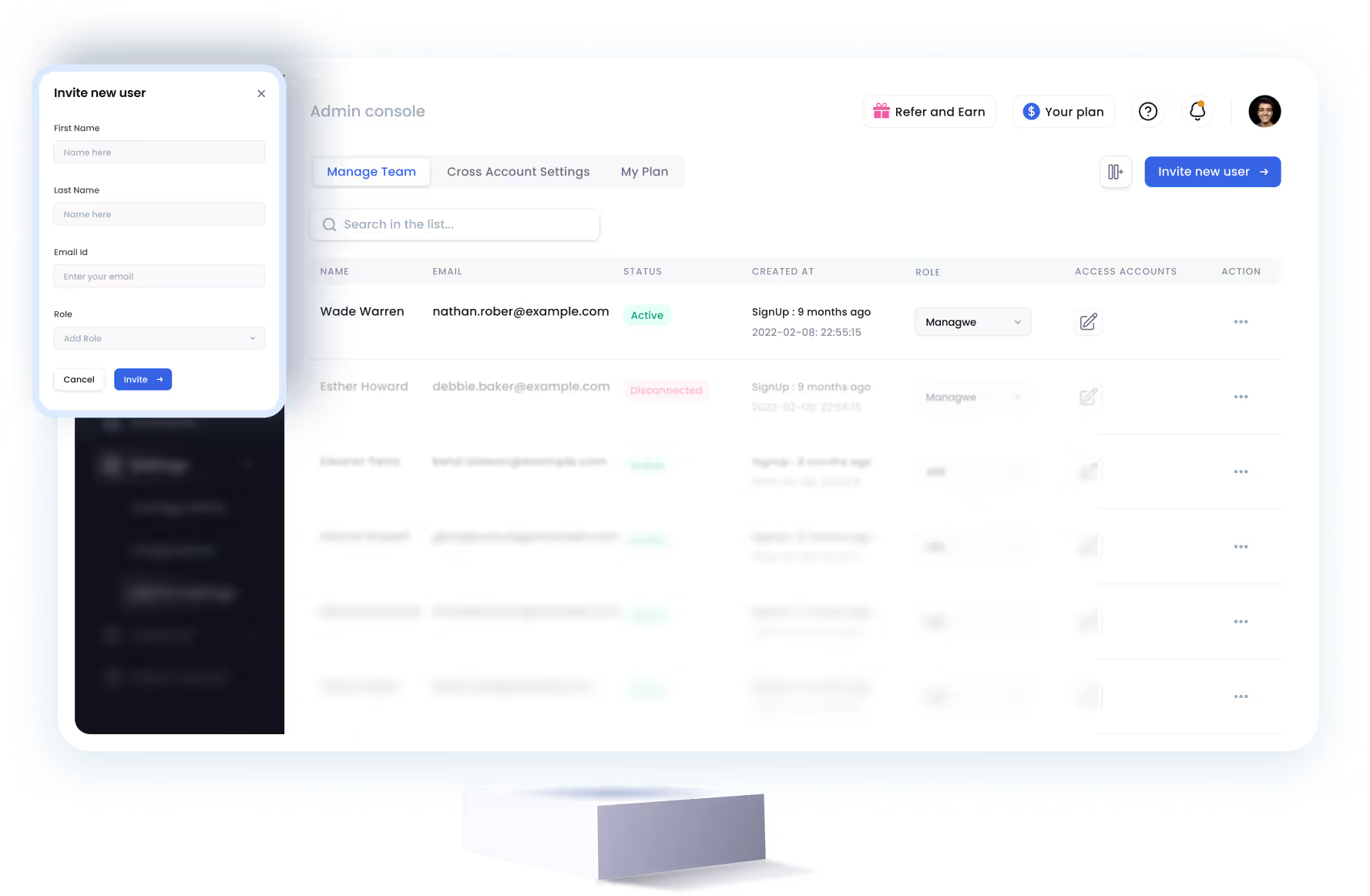
SalesRobot allows you to invite other team members, so that they can add their LinkedIn Account, run outreach campaigns and get amazing results just like you.
.avif)


Trusted by 4100+ innovative B2B sales teams and lead gen agencies

.avif)

.avif)



.avif)

Heading 1
Heading 2
Heading 3
Heading 4
Heading 5
Heading 6
Lorem ipsum dolor sit amet, consectetur adipiscing elit, sed do eiusmod tempor incididunt ut labore et dolore magna aliqua. Ut enim ad minim veniam, quis nostrud exercitation ullamco laboris nisi ut aliquip ex ea commodo consequat. Duis aute irure dolor in reprehenderit in voluptate velit esse cillum dolore eu fugiat nulla pariatur.
Block quote
Ordered list
- Item 1
- Item 2
- Item 3
Unordered list
- Item A
- Item B
- Item C
Bold text
Emphasis

Superscript
Subscript